
Open your .md file,
no fuss.
Someone sent you an .md file and you're not sure what to do with it. MDReader opens it, makes it look beautiful, and lets you print it — and more, for those who need it.
Someone sent you an .md file and you're not sure what to do with it. MDReader opens it, makes it look beautiful, and lets you print it — and more, for those who need it.
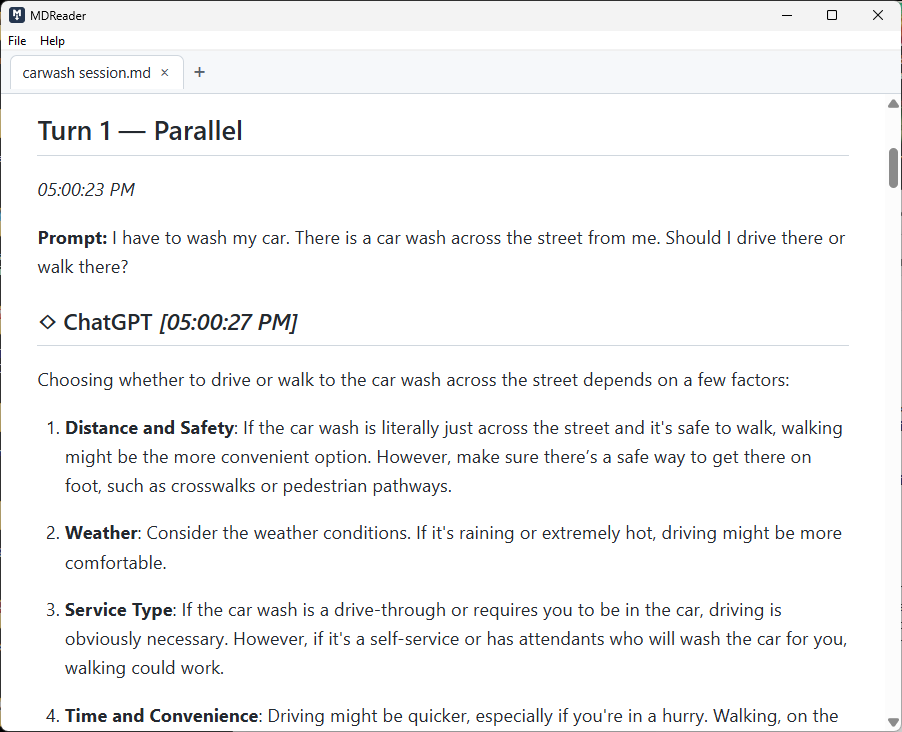
MDReader displaying a Markdown file — clean, readable, ready to print.
What even is an .md file?
An .md (Markdown) file is a document written in plain text with simple formatting signals — like # Heading or **bold**. Developers and writers use them constantly. When you open one in Notepad, it looks like a mess. MDReader reads all those signals and shows you the formatted document, exactly the way the author intended.
What MDReader does
Headings, bullet points, tables, code blocks — everything is rendered cleanly and clearly. It just looks right.
Need a paper copy? Print directly from MDReader with properly formatted output — no stray symbols, no broken layout.
Set MDReader as your default for .md files and they open instantly — no menus, no extra steps.
Open several files at once and switch between them with tabs — familiar, simple, no learning curve.
Installs in seconds, opens instantly. At 16.6 MB installed, it takes up less space than a single photo. No subscription, no account, no cloud. Just a small app that does its job.
MDReader doesn't edit your files, sync them anywhere, or ask for permissions. It reads. It prints. That's all.
* Plus accessibility themes and plain text (.txt) support — because reading should work for everyone.
Accessibility & reading modes
MDReader ships with five reading modes designed for real reading situations — not as an afterthought, but as a first-class part of what the app is for.
Pure black background, bright white text, high-visibility accents — following Windows' own accessibility conventions. If you use Windows' built-in high contrast mode elsewhere, this will feel familiar.
Increases the base font size and line spacing in a way that's distinct from simply zooming your browser — it scales the text while keeping the document layout intact, consistent with WCAG 2.1 guidelines on text resizing.
Uses OpenDyslexic, a free typeface designed by Abbie Gonzalez specifically to reduce common letter confusion. Dyslexia often causes letters to appear flipped or mirrored — b and d, p and q. Most professional typefaces are geometrically consistent, which makes those pairs nearly identical. OpenDyslexic deliberately breaks that symmetry: each character is bottom-weighted and distinctly shaped so similar letters are harder to confuse. The spacing and layout are informed by the British Dyslexia Association's style guide. It's a small thing that makes a real difference for readers who need it.
Reduces eye strain for long reading sessions with a warm off-white background — the same approach e-readers like Kindle and Kobo have used for years, because it works.
Shows you exactly what your document will look like when printed, before you print it. White background, serif body font, no app chrome.
Getting started
Click the download button below and save the installer file to your computer. The MSI installer is recommended for most people.
Double-click to install. Windows may show a security warning the first time — see the note below for how to safely click through it. The whole process takes about 30 seconds.
Use the Open File button in the app, or go to File → Open. You can also drag an .md or .txt file directly onto the MDReader window.
Your document is right there, formatted and ready. Print with Ctrl+P or use File → Print whenever you need a copy.
A note on Windows security
Because MDReader is an independent app from a small developer, Windows SmartScreen may show a warning the first time you install it. This doesn't mean anything is wrong — it just means Windows doesn't recognize the publisher yet. Here's how to proceed.
You may see a dialog that says "Windows protected your PC" or "Unknown publisher." This is Windows SmartScreen. It appears for any new app that hasn't yet built up enough install history with Microsoft — not because anything is wrong with the file.
When the SmartScreen dialog appears, look for the small "More info" link and click it. This expands the dialog to show more options.
A "Run anyway" button will appear at the bottom. Click it to continue with the installation.
The standard Windows installer will open. Follow the prompts — it takes about 30 seconds and installs MDReader like any other app.
Opening .md files automatically
Once MDReader is your default, double-clicking any .md file opens it automatically — no need to go through File → Open each time. If another app is currently set as the default, here's how to switch it.
You just need one .md file to work with — it can be the one you were sent, or any other.
Right-click the file icon to open the context menu.
Hover over Open with in the menu, then click Choose another app from the submenu that appears.
MDReader should appear in the list. If you don't see it, scroll down and click More apps. If it's still not listed, click Look for another app on this PC and navigate to where MDReader is installed — usually C:\Program Files\MDReader.
Make sure the checkbox at the bottom — "Always use this app to open .md files" — is ticked before clicking OK. From now on, double-clicking any .md file will open it straight in MDReader.
MDReader is free and always will be. But if it's made your life a little easier, I'd appreciate the support — and if you can spring for a coffee, I'll get a pup cup for Nagi and tell her it's from you.
Download
No account needed. No trial period. No ads. Just download, install, and open your files.
Windows 10 or later · Version 1.3.1 Standard · 16.6 MB installed
The MSI installer is recommended for most people. The EXE is a self-contained alternative if the MSI doesn't work
on your machine.
Windows may show a security warning during install —
see the note above for how to click through it safely.
Coming soon to the Microsoft Store.